
01
Add one photo
Choose a sharp solo portrait with the face looking toward the camera and both eyes easy to see.
One photo → one viral church edit
The viral edit
Keep the church entrance, hard cuts, confident looks, and soundtrack. Change the lead with one clear photo.
One clear solo photo
A front-facing portrait with both eyes visible gives the strongest result. JPG, PNG, and WebP are supported.
About 17 seconds
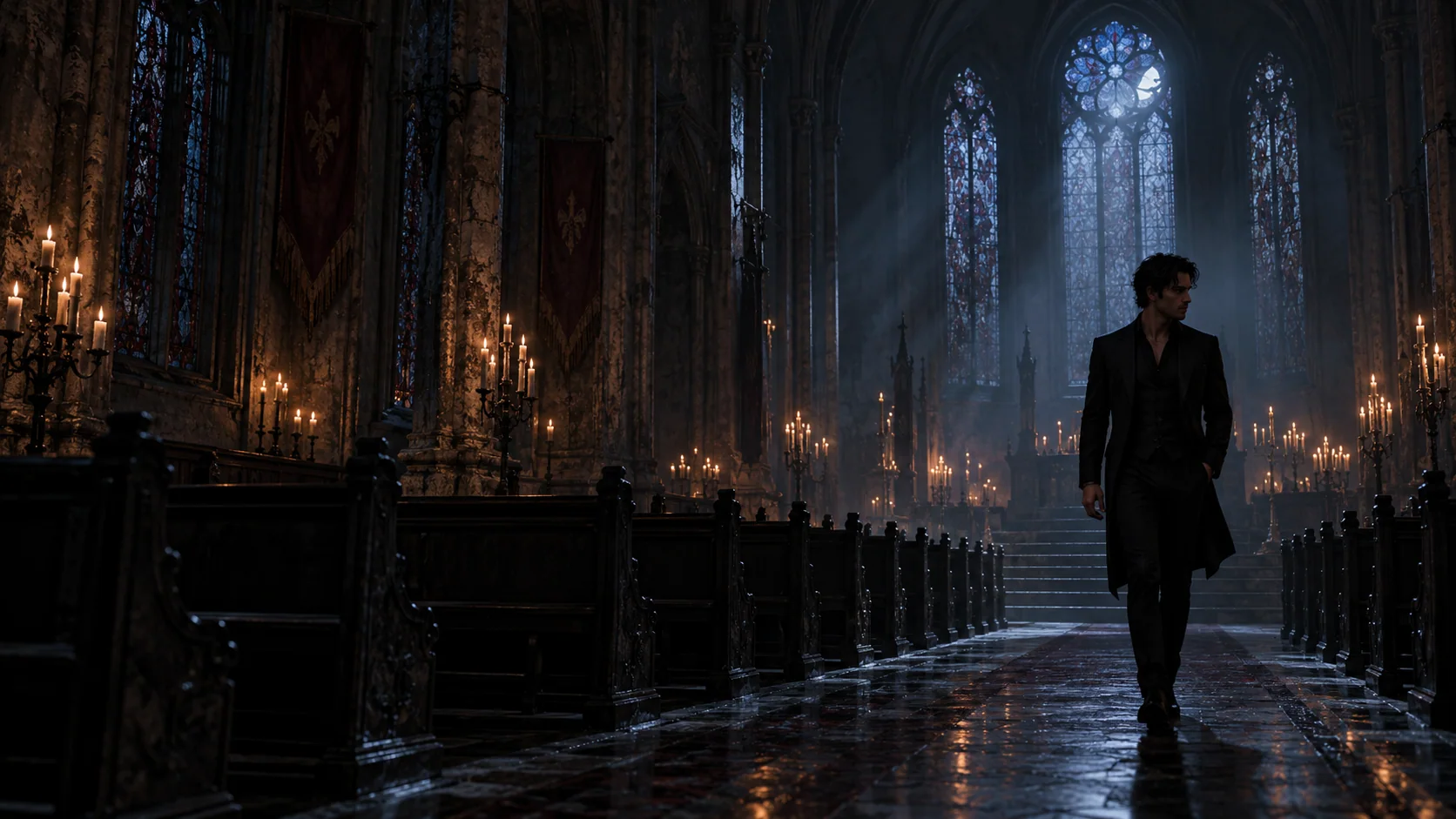
The built-in reference keeps the church opening and the fast cinematic montage that follows.
Square 1:1 MP4
Choose 540P for a quick first take or 720P for the version you want to post.
Original reference sound
The generated edit follows the reference soundtrack, so the timing lands with every cut.
10 credits at 540P · 20 at 720P
The $8.90 Single Scene pack covers one 720P or two 540P videos. Credits never expire, and confirmed failed jobs return their reserved credits automatically.
TikTok, Reels, and Shorts
Download the finished MP4 and post it as-is or add your own caption and platform audio.
Damon Salvatore AI tutorial
Choose a sharp solo portrait with the face looking toward the camera and both eyes easy to see.
Watch the exact 17-second square edit. Its movement, cuts, expressions, and soundtrack become the structure of your result.
Pick 540P or 720P, create your video, then download the MP4 for TikTok, Reels, or Shorts.
Built for the church scene edit
Everything is already cut to the trend. You only choose the face and output quality.
The church entrance, glances, smirks, and montage timing stay locked to the built-in reference.
PixVerse Swap follows the lead through the scene changes instead of stopping after a single shot.
Download an approximately 17-second 1:1 video in 540P or 720P with the reference sound included.
Photo tips
Most of the edit is close-up, so a good source photo matters more than a complicated prompt.
“Use a photo where the face points toward the lens and both eyes are visible.”
The final close-ups are strongest when the model has a direct view of the face.
“Choose a photo with one person, or crop the image so one face is clearly dominant.”
A single obvious subject prevents the model from choosing the wrong person.
“Soft daylight or bright indoor light works better than deep shadows and colored filters.”
Clear facial detail helps your features stay recognizable across the montage.
“A head-and-shoulders or upper-body photo gives the edit more useful identity detail.”
Tiny faces in wide photos tend to produce softer results.
“Avoid sunglasses, masks, stickers, beauty filters, and hands covering the face.”
The cleaner the input, the more natural the eyes, jawline, and expressions look.
“Choose a current photo that shows the hair and facial hair you want in the final edit.”
The generated lead takes its visible identity cues from the image you upload.
Damon Salvatore AI FAQ
It turns one photo into the viral square church-scene edit with you as the lead. The built-in reference supplies the movement, cuts, expressions, and soundtrack.
Upload one clear photo, preview the reference, choose 540P or 720P, and generate. When it is ready, download the square MP4 and post it.
Use a sharp solo portrait with both eyes visible, even lighting, and no sunglasses or heavy filters. Head-and-shoulders photos usually work especially well.
The video follows the full built-in reference and runs for about 17 seconds. It is delivered as a square 1:1 MP4.
Yes. The reference sound stays with the edit so the cuts keep their intended rhythm. You can replace it with a trending sound after uploading to your social app.
No template link is needed. The generator creates the video online from your photo, then gives you a finished MP4 to download.
A 540P video uses 10 credits. A sharper 720P video uses 20 credits and is selected by default. All credit packs are one-time purchases, and credits never expire.
Most videos take a few minutes. Processing can take longer when demand is high, and you can return to your account to check the result.
Confirmed failed jobs automatically return the credits reserved for that video, so you can try again.
Yes. Download the square MP4, add your caption, and post it directly or swap in the sound currently trending on your platform.
Yes. The upload area shows your complete photo without cutting off the top or bottom. A portrait or full-body image can work, but keep the face large, sharp, and easy to see because the finished video follows the square reference framing.
Yes. Upload one clear photo and the generator carries that person's identity through the full church entrance and montage instead of creating only a single still image.
Yes. Open it in a modern mobile browser, choose a photo from your camera roll, generate the clip, and download the finished MP4 to your phone.
Yes. Return to the generator in the same browser after signing in or completing checkout and your selected photo and output quality stay ready, so you can continue without uploading again.
Your scene
One photo and a few minutes are all you need to make your version of the Damon Salvatore church scene AI trend.